Connecting integrations
How integrations authenticate, who can use each connection, what read and write access allow, and how API keys reach agents.
On this page
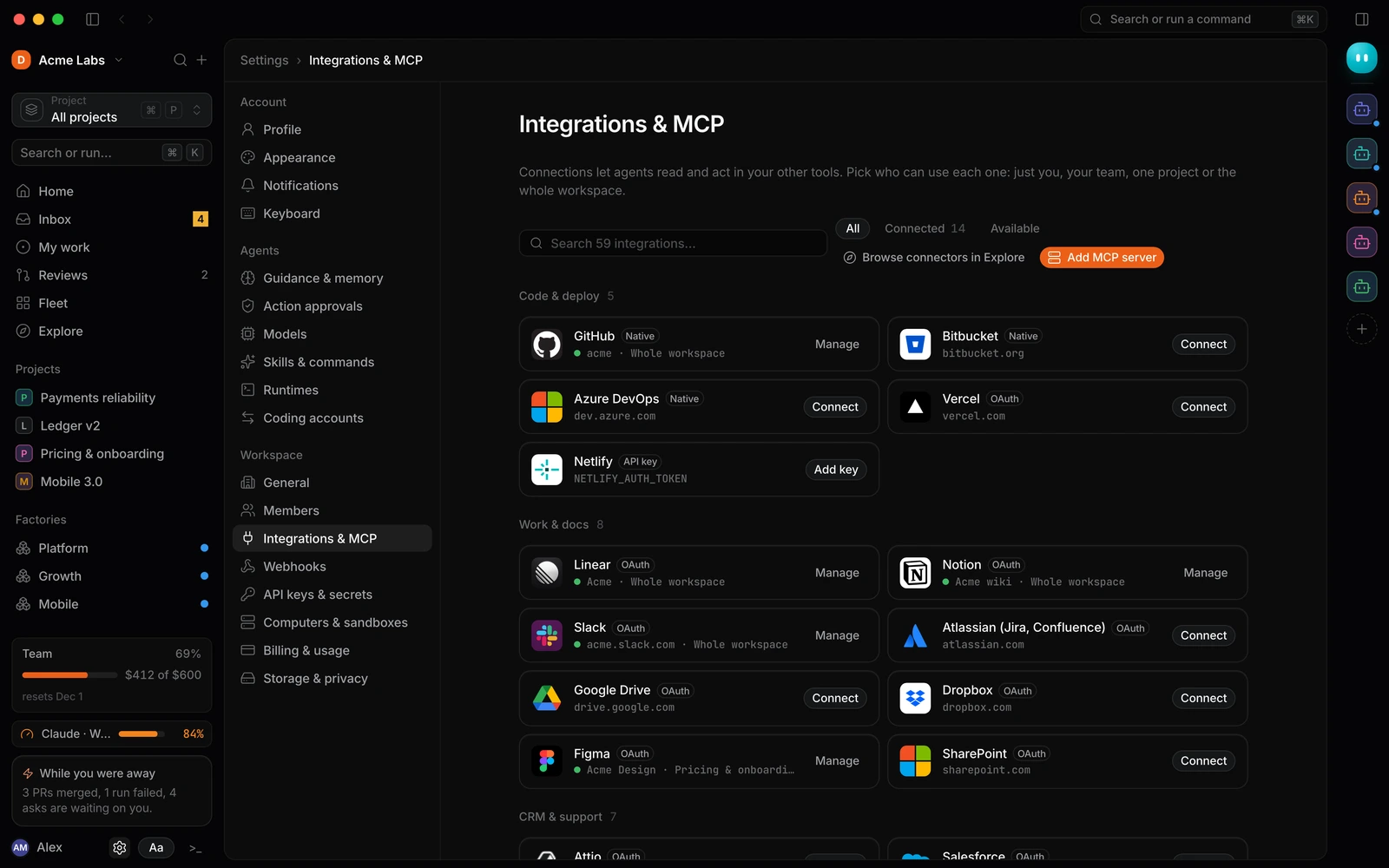
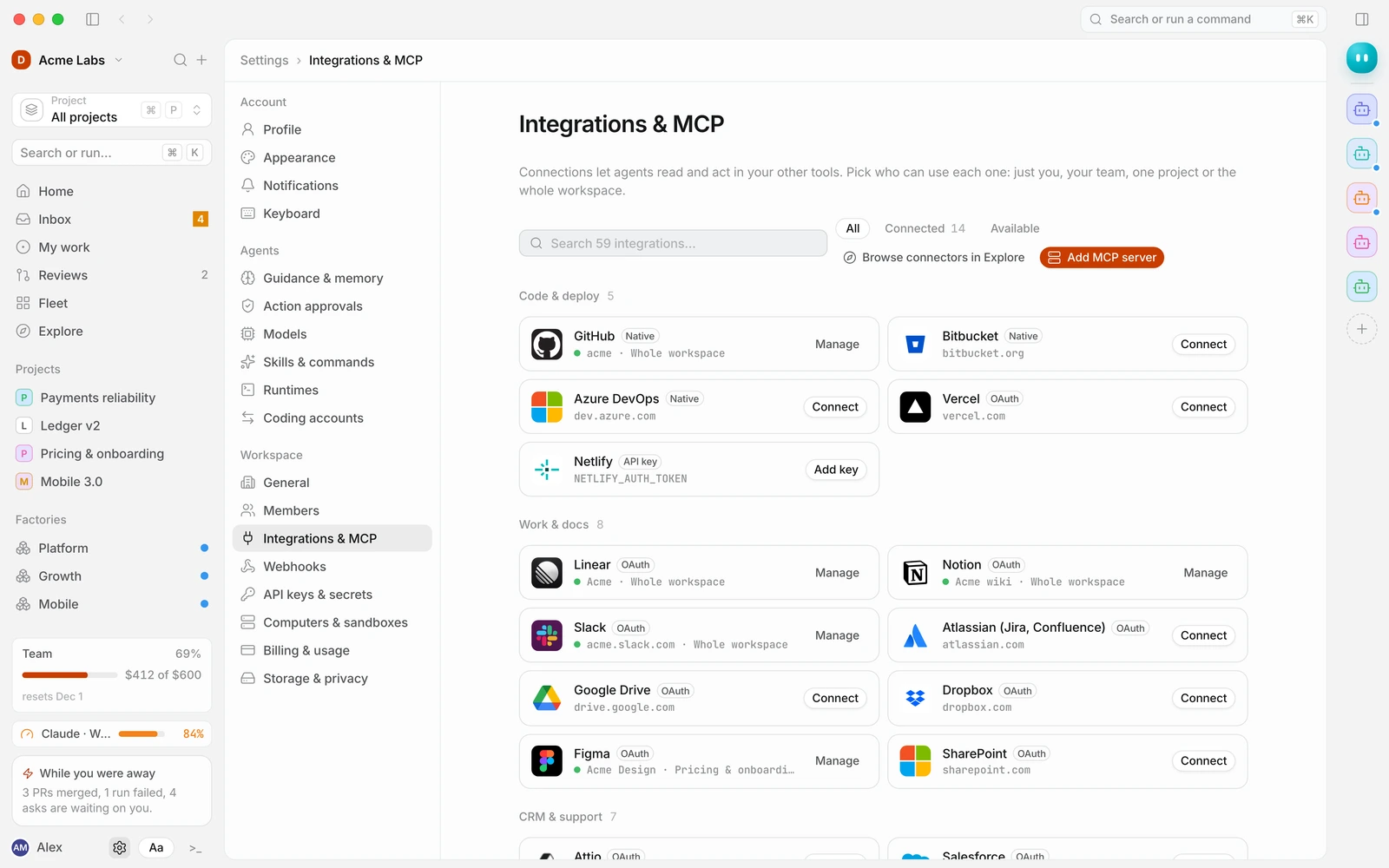
Integrations let agents read context from the tools your team already uses and act in them: pick up a Linear issue, read a Sentry trace, post in Slack, open a GitHub pull request. You connect them in Settings → Integrations & MCP, and each connection has a scope that decides which runs can use it.
Authentication types
Every integration uses one of four auth types, shown on its row:
| Type | How you connect | Examples |
|---|---|---|
| Native | Install the Duun app on the account and pick repos | GitHub, Bitbucket, Azure DevOps |
| OAuth | Approve access on the provider’s site, then come straight back | Linear, Slack, Notion, Sentry, Figma |
| API key | Paste a key; it is stored as a secret | OpenAI, Datadog, Cloudflare, Supabase |
| MCP | Point Duun at a Model Context Protocol server | MCP (HTTP), connector presets |
The full list, with each integration’s auth type and environment variable, is in the Integration catalog.
Connect an integration
- Open Settings → Integrations & MCP and search the list, or filter by category.
- Select the integration and choose Connect (OAuth and native) or Add key (API key).
- Choose Who can use it and whether agents may write, then confirm.
- For OAuth, approve access on the provider’s site. You return to Duun with the connection active.
The toast confirms the connection and its scope, for example “Connected Linear · Whole workspace”.
Scopes: who can use it
Each connection belongs to one scope:
| Scope | Who can use it |
|---|---|
| Just me | Runs you start can use your account |
| My team | Everyone on the team you pick, for example “Everyone on the Platform team” |
| Project | Only runs inside the project you pick |
| Whole workspace | Every project and teammate in the workspace |
The same integration can be connected more than once at different scopes. A run uses the narrowest connection that applies: your personal Google Calendar over nobody’s, the Payments project’s Stripe test-mode key over a workspace one.
Change a connection’s scope from its row menu. Narrowing the scope removes access for runs outside it on their next call.
Read and write access
Every connection includes Read (required): search and read as context for runs. Write access is a separate choice: create and update things, where each write still follows Action approvals.
So an agent with write access to Linear can comment on an issue or change its state, but if your rules say writes ask first, the comment waits in Inbox until someone approves it. Turning write access off is the simplest way to make an integration context-only.
API-key integrations and secrets
When you add a key for an API-key integration, Duun stores it in Settings → API keys & secrets under the variable name that service’s CLI and SDK expect. “Stored as a secret. Agents receive it as DATADOG_API_KEY.”
From there you can:
- Rotate it without reconnecting the integration.
- Limit Who can use it to specific agents.
- Turn on Ask before each use, so a run pauses with an ask before the value is mounted.
- Override it in one project with a different value.
The key is injected into the run’s environment. The model never sees the value, and it never appears in transcripts. See Security and data handling.
Repo hosts
GitHub, Bitbucket and Azure DevOps connect natively. Install the Duun app on an organisation or account and choose its repositories. Repos then appear in factory and project pickers, and agents can open pull requests against them with the Open pull requests tool. To add repos later, change the app’s repository access on the provider and they appear in Duun within a minute.
Link previews
Pasted links unfurl without a connection. Links to GitHub, Figma, Linear, Notion, Google Docs, Sheets and Slides, Slack, YouTube, Framer, Google Drive, GitLab, Jira, Confluence, Loom, Miro, Dropbox, OneDrive, SharePoint, Asana and Trello show a title and preview in the composer. Agents only read the linked content if you have a connection that allows it.
Reconnect or disconnect
When a provider revokes a token or a key stops working, the connection shows an error and runs that need it pause with an ask. Choose Reconnect from the row menu to sign in again; runs waiting on it can then resume.
Disconnect removes the connection. Agents lose access right away. Running jobs fail on their next call to that integration. API keys stay in API keys & secrets until you delete them there.
The row also shows “Used recently by” with the agents and runs that called it, which helps you check what depends on a connection before you remove it.
Related
- MCP servers
- Integration catalog
- Connect GitHub, Linear and Slack and Integration disconnected in the help center